Panel
The Panel component allows you to present content to your users in a clear and structured way by providing a stable layout.
Example
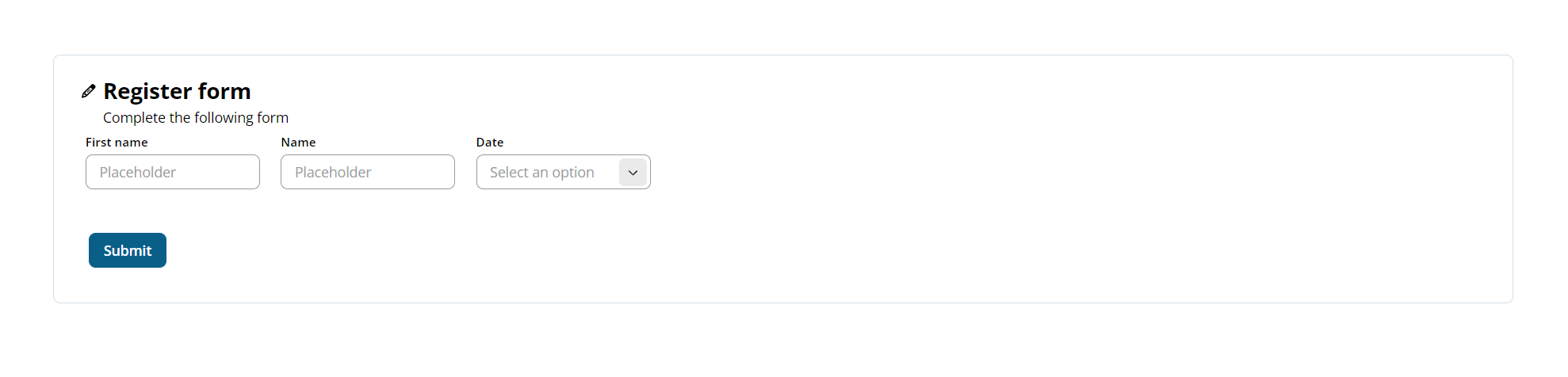
You can use the Panel component to create a Register form with Text input and Dropdown components in the content section and a Button to submit the form in the footer.
Note: The Panel component follows the WCAG 2.0 AA accessibility guidelines.
Properties
The following Panel component properties are available:
Main properties
The following table describes the main properties of the component.
| Property | Description | Required |
|---|---|---|
| Title | Enter the text you want as the heading. | Yes |
| Subtitle | Enter the text you want to display below the Title. | No |
| Icon before | Select an icon or type to search. This displays to the left of the Title. | No |
| Icon after | Select an icon or type to search. This displays to the right of the Title. | No |
| Collapsible | Turn on to make the Panel collapsible via a chevron button. | No |
| Collapsed by default | Select whether the Panel starts Expanded or Collapsed. The default is Expanded. Available only when Collapsible is on. The end user can still expand or collapse the Panel after it loads. | No |
| Summary | Enter a text to show as a summary when the Panel is collapsed. By default, no summary is shown. Available only when Collapsible property is on. | No |
Styles properties
The following table describes the styles properties of the component.
| Property | Description | Required |
|---|---|---|
| Background color | Select a background color for the container from the drop-down. | No |
| Content size | Select the size from the drop-down menu. | No |
| Hide footer | Turn on to hide the footer. | No |
| Hide border | Turn on to hide the border. | No |
Interactions properties
The following table describes the interactions properties of the component.
| Property | Description | Required |
|---|---|---|
| Hidden | Select the checkbox to hide the component in the end-user app. To hide it in the canvas, use the eye icon in the Layers panel. | No |
| Add rule | You can set rules to hide the component using Liquid JS. If no rules are set, the component will be hidden in all instances. | No |
Note: See Add rules to trigger properties for more information on setting rules for these properties.