Notifications
The Notifications window shows system-wide announcements from the Extension Kit team, such as release notes, breaking changes, new limits or restrictions, security advisories, incidents and planned maintenance. It gives every portal user a single place to stay informed without leaving the Extension Kit portal, instead of relying on emails or external documentation.
Prerequisites
- You need the Reader role or a higher role in the tenant.
Open the Notifications window
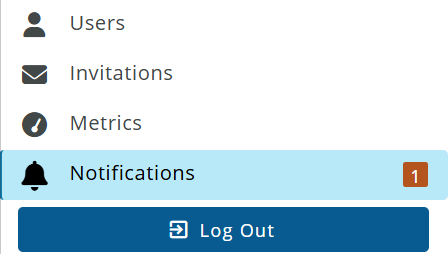
Select the Notifications button (the bell icon) in the left menu of the portal.
When you have unread notifications, the bell shows a badge with the number of unread notifications. The badge is hidden when all notifications are read.
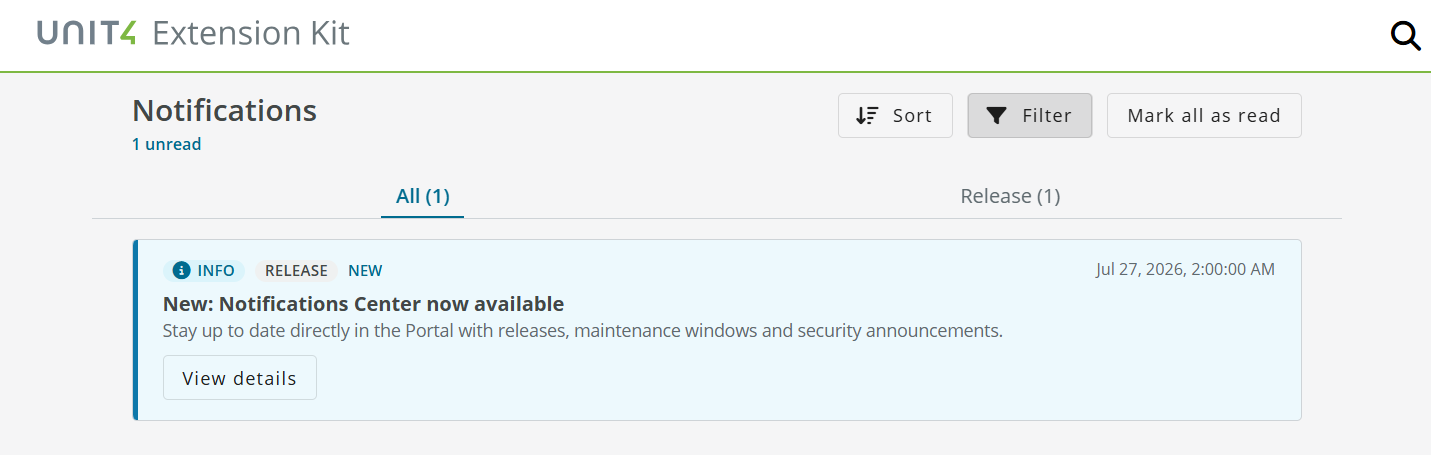
The header of the window shows how many notifications are unread and, when applicable, how many unread notifications are critical.
Notification list
Each notification in the list shows:
- Severity: Info, Warning or Critical.
- Category, when set: Release, Incident, Security, Maintenance, General, Policy or Integration.
- A New tag when you have not read the notification yet.
- The title and a short summary.
- The date and time when the notification was published.
- A View details button.
Only active notifications are listed. A notification appears once its publication date is reached and disappears automatically after its expiry date, if it has one.
When there are no active notifications, the window shows You have no active notifications.
View notification details
Click the View details button to open the notification. The details window shows:
- The title, severity and category.
- Published: the publication date and time.
- Expires: the expiry date and time, when the notification has one.
- The full text of the notification.
- Related links, when available. Links open in a new browser tab.
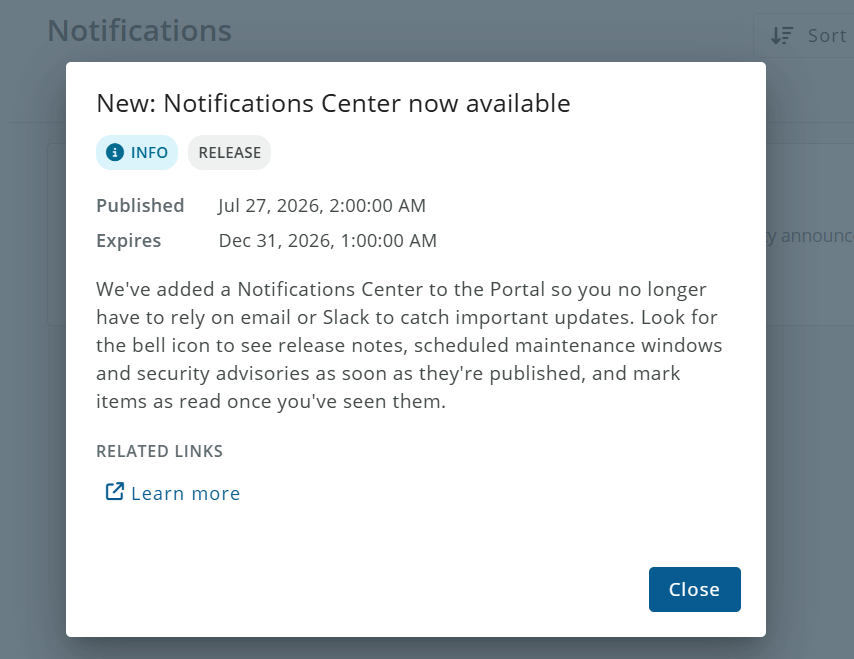
Opening the details marks the notification as read. The unread counter and the bell badge are updated accordingly.
Find notifications
Category tabs
The tabs above the list show the All tab and one tab for each category that currently has notifications, together with the number of notifications in that category. Select a tab to show only that category.
Search
Use the search box in the top toolbar (Search notifications...) to find notifications whose title or summary contains the search text.
Sort
Click the Sort button and select one of the following options:
- Newest first (default)
- Oldest first
- Unread first
- Most urgent first: sorted by Critical first, then Warning, then Info.
The portal remembers the sort choice in your browser.
Filter
Click the Filter button to narrow the list by:
- Severity: one or more of the Info, Warning and Critical.
- Status: All, Unread or Read.
- Time: All time, Last 7 days, Last 30 days or Last 3 months, based on the publication date.
The Filter button shows the number of active filters. The active search and filters are displayed as labels above the list. Remove a label to clear that filter or click the Clear all button to clear the search, filters and category selection.
When no notification matches, the window shows No notifications match your filters. Click the Clear filters button to show all notifications again.
Mark notifications as read
You can mark notifications as read in two ways:
- Open a notification with View details.
- Click the Mark all as read button. This marks the unread notifications that are currently visible on the list. When a category tab, search or filter is active, only the matching notifications are marked as read. The button is disabled when no unread notifications are visible.
Read status is personal: it is saved for your user in the current tenant and does not affect other users.
Automatic updates
The notification list and the bell badge refresh automatically every 15 minutes. A newly published notification can therefore take up to 15 minutes to appear.
The automatic refresh does not count as an activity in the portal, so it does not keep an inactive session open. Marking notifications as read counts as an activity.
Limitations
- Notifications are published by the Extension Kit team. You cannot create, edit or delete notifications in the portal.
- Only system-wide announcements are available. Notifications about your own flows, such as flow execution alerts, are not available.
- Notifications are shown only in the portal. Email delivery and notification delivery preferences are not available.
- Critical notifications are highlighted in the list and in the critical counter, but they are not displayed as a banner on other portal pages.