How to activate App Studio for a new ERP CR tenant
Here is a quick guide to activate Unit4 App Studio (AS) for an ERP CR tenant.
Prerequisites
Before activating App Studio for a new ERP CR tenant, ensure the following requirements are met:
- IDS authentication: Unit4 Identity Services (U4IDS) login must be enabled for the ERP CR tenant.
- Extension Kit (U4EK) availability: Extension Kit must be available for the target tenant.
- Common Parameters configuration: The ERP CR instance must have the following variables configured in the Common parameters (TAG023) window:
DISCO_URI: The Discovery Service URI for the environment.IDS_AUTHORITY: The U4IDS authority URL for authentication.
| Environment | Region Code | Region | IDS_AUTHORITY | DISCO_URI |
|---|---|---|---|---|
| NPE (ACPT/PREV) | Ase/Asg | Asia | https://s-as-ids1-preview.unit4cloud.com/identity | https://s-disco1.unit4cloud.com |
| NPE (ACPT/PREV) | Aue/Aus | Australia | https://s-au-ids1-preview.unit4cloud.com/identity | https://s-disco1.unit4cloud.com |
| NPE (ACPT/PREV) | Cac/Cae | Canada | https://s-ca-ids1-preview.unit4cloud.com/identity | https://s-disco1.unit4cloud.com |
| NPE (ACPT/PREV) | Eun/Euw | Europe | https://s-eu-ids1-preview.unit4cloud.com/identity | https://s-disco1.unit4cloud.com |
| NPE (ACPT/PREV) | Noe/Now | Norway | https://s-no-ids1-preview.unit4cloud.com/identity | https://s-disco1.unit4cloud.com |
| NPE (ACPT/PREV) | Swc/Sws | Switzerland | https://s-sw-ids1-preview.unit4cloud.com/identity | https://s-disco1.unit4cloud.com |
| NPE (ACPT/PREV) | Uks/Ukw | UK | https://s-uk-ids1-preview.unit4cloud.com/identity | https://s-disco1.unit4cloud.com |
| NPE (ACPT/PREV) | Usn/Uss | US | https://s-us-ids1-preview.unit4cloud.com/identity | https://s-disco1.unit4cloud.com |
| PE (PROD) | Ase/Asg | Asia | https://s-as-ids1.unit4cloud.com/identity | https://s-disco1.unit4cloud.com |
| PE (PROD) | Aue/Aus | Australia | https://s-au-ids1.unit4cloud.com/identity | https://s-disco1.unit4cloud.com |
| PE (PROD) | Cac/Cae | Canada | https://s-ca-ids1.unit4cloud.com/identity | https://s-disco1.unit4cloud.com |
| PE (PROD) | Eun/Euw | Europe | https://s-eu-ids1.unit4cloud.com/identity | https://s-disco1.unit4cloud.com |
| PE (PROD) | Noe/Now | Norway | https://s-no-ids1.unit4cloud.com/identity | https://s-disco1.unit4cloud.com |
| PE (PROD) | Swc/Sws | Switzerland | https://s-sw-ids1.unit4cloud.com/identity | https://s-disco1.unit4cloud.com |
| PE (PROD) | Uks/Ukw | UK | https://s-uk-ids1.unit4cloud.com/identity | https://s-disco1.unit4cloud.com |
| PE (PROD) | Usn/Uss | US | https://s-us-ids1.unit4cloud.com/identity | https://s-disco1.unit4cloud.com |
- Service call client user configuration: There must be at least one user in the tenant with the Unit4 ID set to
service_call_client. This is automated for new tenants, but existing tenants may not have it configured.
Verify this configuration in ERP CR:
-
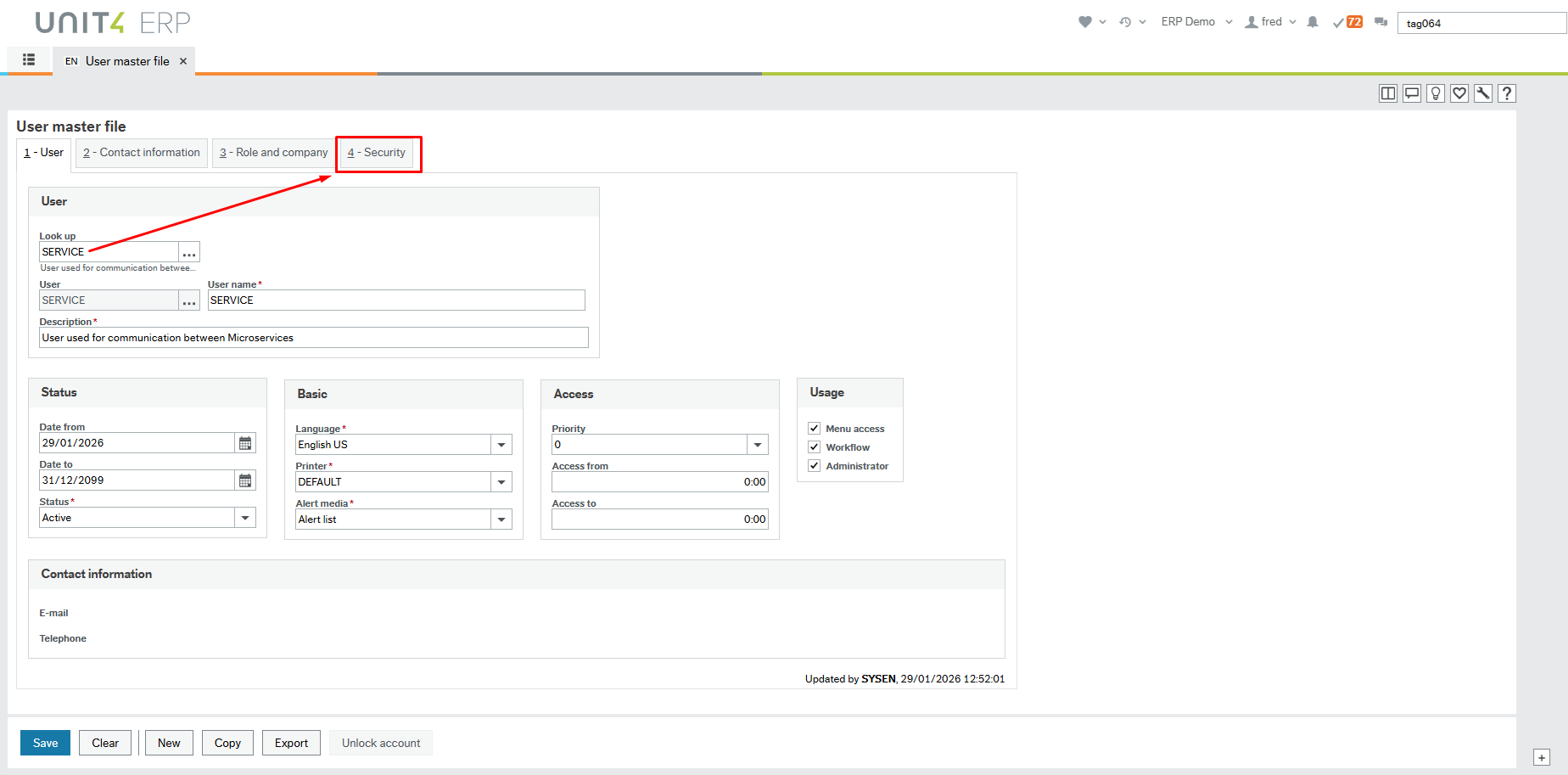
Open the User master file (TAG064) screen and verify there is a user named SERVICE.
-
Open the Security tab and verify the Unit4 ID field is set to
service_call_client.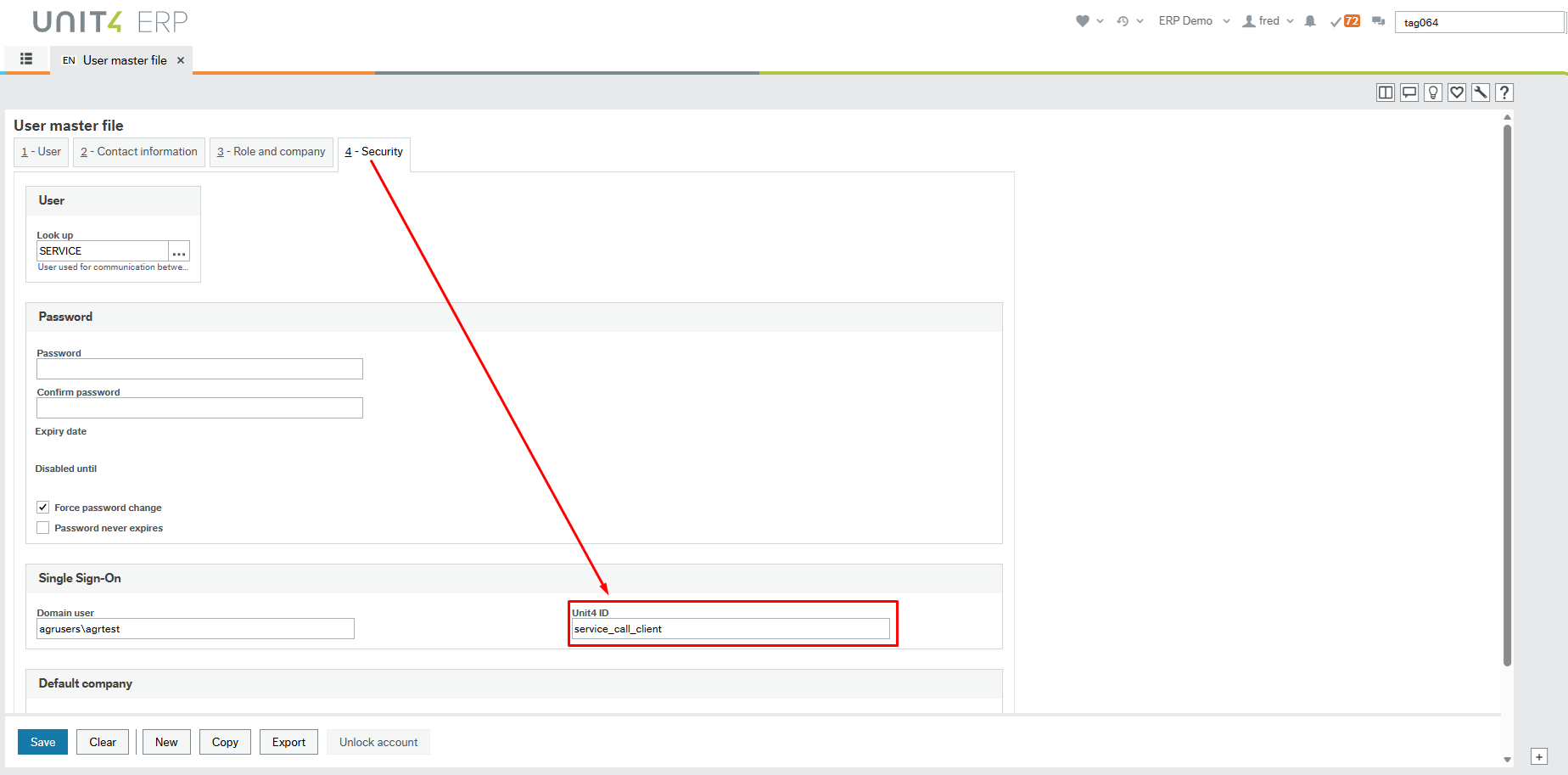
-
Open the Role and company tab and verify the user has the roles
SUPERandSYSTEM.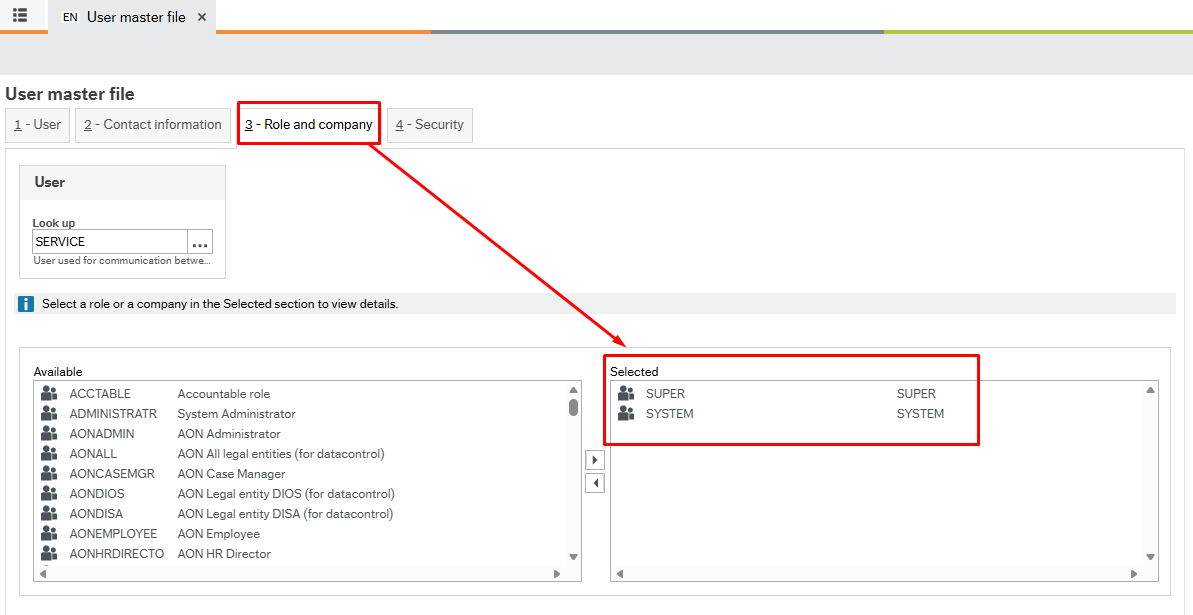
-
Open the Public API access (XAG005) screen, locate the Menus > Menus entry, and verify that the
SYSTEMrole has at least the Read and Update permission checkboxes selected.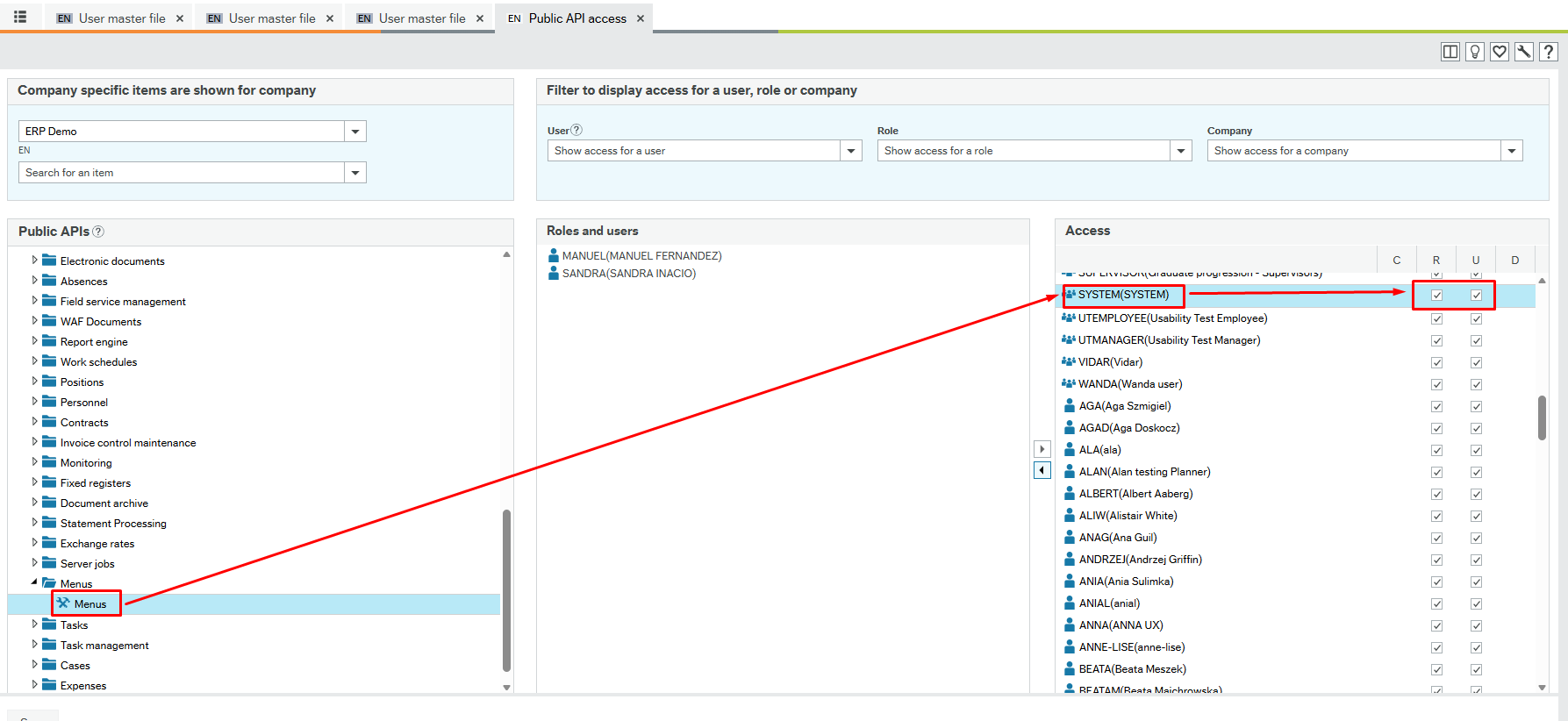
Activation
Follow these steps to activate App Studio for a new ERP CR tenant:
1. Request App Studio activation
If App Studio is not yet activated for your ERP CR tenant, contact your system administrator to request activation.
2. Configure the created client in ERP CR
To configure the client in ERP CR:
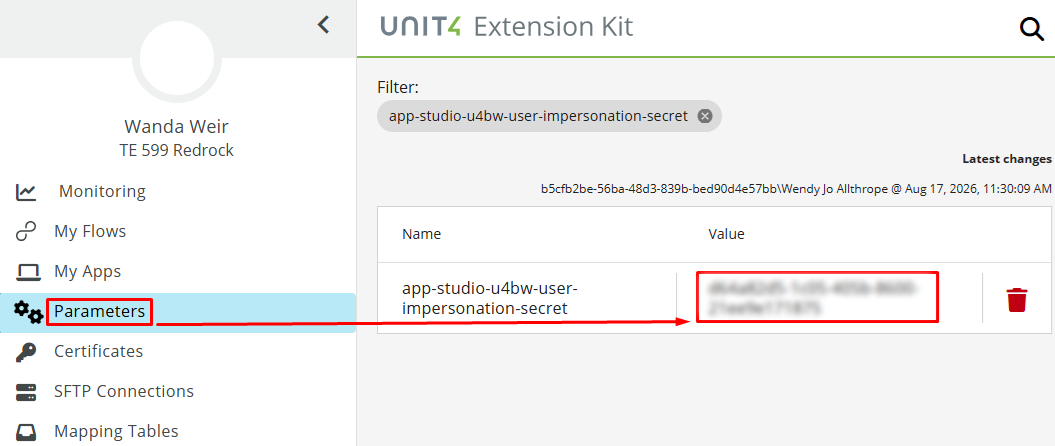
- In Extension Kit, open the Parameters section and copy the value of app-studio-u4bw-user-impersonation-secret. This parameter is created automatically during App Studio activation.
- Sign in to Extension Kit.
- Open Parameters from the main menu. For details, see Tenant parameters.
- Search for app-studio-u4bw-user-impersonation-secret.
- Copy the parameter value. You will use it as the Secret value in ERP CR.
- In ERP CR:
- Go to System administration > System setup > Web service accounts (TAG200)
- Add the client by selecting the Add button, and fill in the fields as shown in the table:
| Field | Description |
|---|---|
| Authorization type | Select OAuth 2.0 Client Credentials Flow from the dropdown. |
| Name | IdsImpersonationServiceAccount |
| ID | app-studio-u4bw-user-impersonation |
| Description | App Studio user impersonation client |
| Secret | Enter the secret provided for your tenant. |
3. Verify App Studio accessibility
To confirm accessibility:
- Check that Extension Kit is available in the relevant environment or tenant within Disco.
- If Extension Kit is missing, AS will not be accessible.
❗Important: ERP CR users who want to use AS must always log in through IDS.